Select Version of EA Desktop:
There may be times where you want to look at different types of data contained in a module with different views. Instead of loading a data set and constantly rearranging the grid to have the relevant columns displayed, it’s possible to save multiple layouts within a module and switch between them as needed.
In Seismic, you may want to examine 2D data with certain columns of the grid visible and in a specific order and possibly have the displayed data grouped by specific columns.
When you are looking at 3D Data, you need to have different columns in the grid visible the grid in a completely different order.
You can create a layout for each type of data set and switch between them as required.
To save a custom grid layout:
-
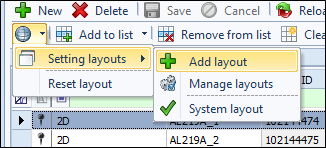
Open the Setting Layouts menu and select Add Layout.
-
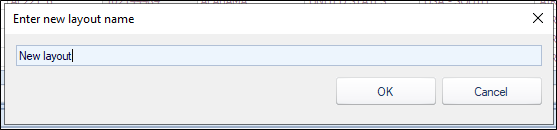
When prompted, enter a name for your layout and click OK.
-
After you have added the layout, adjust the window and grid settings to your preferred view. The layout will be saved automatically.
There are some things to remember when saving layouts:
-
Layouts are not bound to data sets. You can apply a layouts will be applied to any data currently in the grid.
-
Window layouts are saved. If you have arranged the panes in a workspace, those positions will be saved
-
The Group by Panel setting is saved. If you group data with the Group By bar then that will be saved in the layout.
To recall a custom view, select the layout from the Settings Layout menu.